
ChatGPT on your phone: how to get started
ChatGPT runs just as well on your phone as on a computer, and because your phone is always in your pocket, the app’s voice and camera features are especially handy. Setting it up takes about two minutes, even if you’ve never used it before.
The short version:
- Install the official ChatGPT app made by OpenAI — from the App Store (iPhone) or Google Play (Android).
- Open it and sign in, or create a free account. The free plan works fully on a phone.
- Start typing your question, or tap the microphone to talk. You can also send a photo.
What you need before you start
Not much. To use ChatGPT on your phone, you need three things:
- A smartphone. Any reasonably recent iPhone or Android phone will do.
- An internet connection. Wi-Fi or mobile data. ChatGPT sends your question to OpenAI’s computers and brings the answer back, so it can’t work with no signal.
- A way to sign in. An email address, or a Google or Apple account.
That’s the whole list, and none of it costs anything to begin.
Step 1: Install the official app
- iPhone/iPad: open the App Store, or go straight to the official ChatGPT listing.
- Android: open the Google Play Store, or go straight to the official ChatGPT listing.
Search for ChatGPT and install the app published by OpenAI. This last part matters: there are copycat apps with similar names and icons that may charge money or pile on ads for what’s otherwise a free service. Check that the developer is “OpenAI” before you tap install. The official app also has a huge number of reviews; a near-identical app with only a handful is a warning sign.
Step 2: Sign in or create an account
Open the app and either sign in or create a free account. You can use an email address, or sign up with a Google or Apple account for speed. The free plan works fully on the phone — there’s nothing to pay to get started.
If you already use ChatGPT on a computer, sign in with the same account and your chats and any paid plan come with you. New to it entirely? Start with what ChatGPT is and how to use it.
Can you use ChatGPT without an account?
For basic questions, yes — OpenAI lets you try ChatGPT without signing in, so you can type a question and get an answer with no account at all. But the no-account version is a limited guest mode: your chats aren’t saved, nothing syncs between your phone and computer, and some features need you to be signed in.
You may also find that ChatGPT suddenly asks you to sign in when it didn’t before — people run into this, and it’s the app being stricter, not something you did wrong. Either way, the fix is the same: the free account takes about a minute to create, costs nothing, and makes everything in this guide work reliably. If you’re going to use ChatGPT more than once, it’s worth having.
Step 3: Ask your first question
You’ll see a text box at the bottom of the screen, just like the website. Tap it, type your question in plain, everyday language, and tap the send arrow. An answer comes back in a few seconds.
There’s no special way to phrase things. Ask the way you’d ask a helpful person: “Explain how a microwave heats food in simple terms,” or “Write a short thank-you note to a neighbor.” If the first answer isn’t quite what you wanted, just say so. Tell it “make that shorter” or “explain it like I’m five,” and it will try again in the same conversation.
What to try first
If you’re not sure what to ask, here are easy things ChatGPT handles well from a phone:
- Quick explanations: “What does this word mean?” or “Explain this news story in plain English.”
- Writing help: “Write a friendly message to reschedule an appointment.”
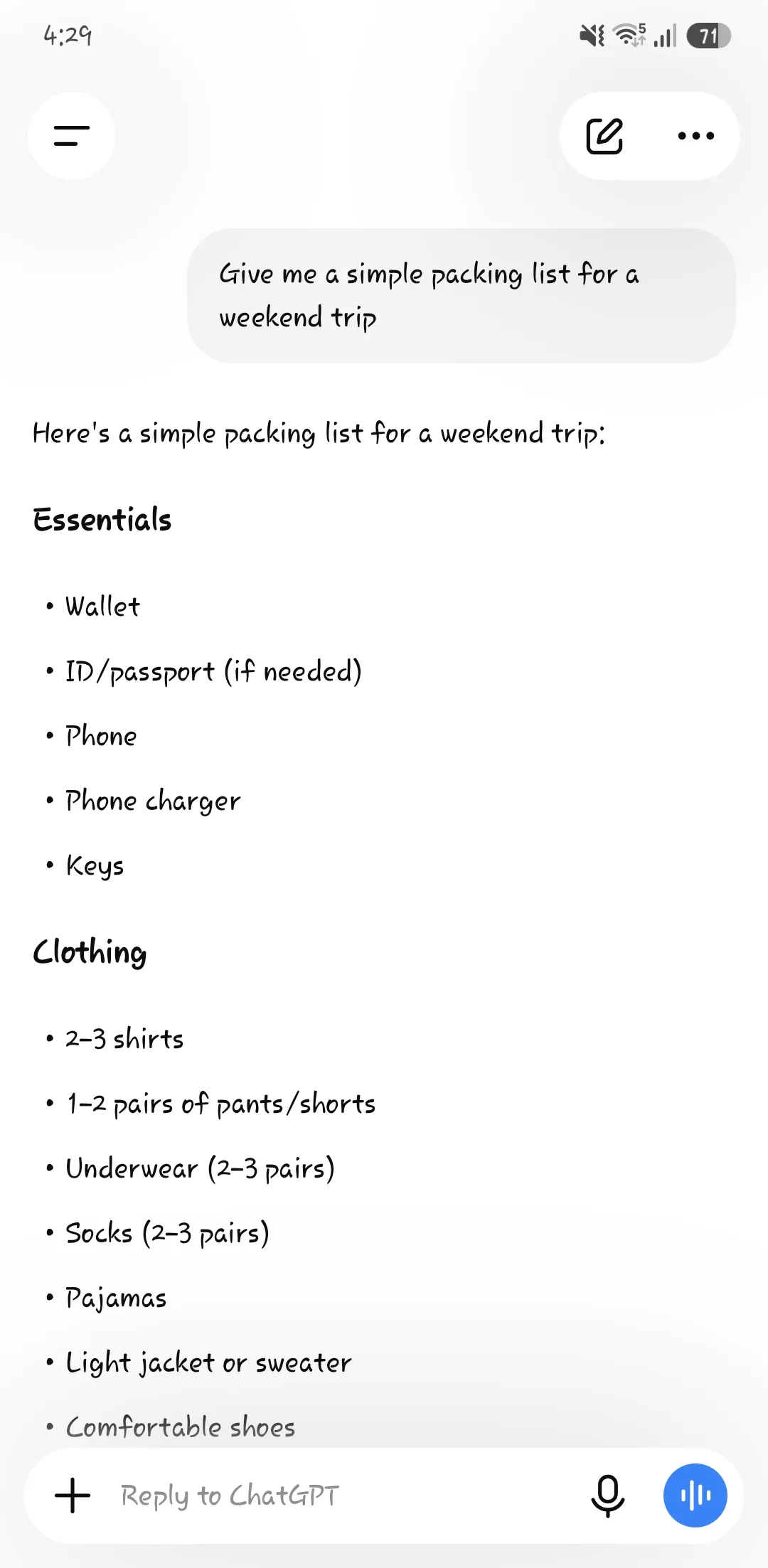
- Everyday planning: “Give me a simple packing list for a weekend trip.”
- On-the-spot help: snap a photo of a recipe and ask for a shopping list.
For many more ideas, see our guide to using ChatGPT for everyday tasks.
Using voice
Voice is the app’s standout feature, and there are two different ways to use it.
- Talk instead of typing. Look for the voice icon near the message box (it usually looks like a soundwave or a small headphone symbol). Tap it, speak your question out loud, and ChatGPT answers back. You can hold a normal spoken back-and-forth, which is genuinely useful when your hands are full, like when you’re cooking or walking the dog.
- Have an answer read aloud. This is a separate thing from talking to it. After ChatGPT writes a reply, you can have the app read that text out loud. It’s handy when you’d rather listen than squint at a small screen.
Voice is part of the free plan. Talking and having answers read aloud are unlimited; only the most advanced, natural-sounding voice has a short daily limit, after which it falls back to the standard voice.
Using your camera and photos
You can also show ChatGPT things. Snap a photo or attach one and ask about it:
- “What does this error message mean?”
- “Give me a recipe using what’s in this fridge photo.”
- “Explain this letter I got.”
It’s a quick way to get help with something right in front of you without typing it all out.
Finding your past chats
Every conversation is saved, so you can pick up where you left off. Open the menu (usually by tapping the lines or your profile picture in a corner) to see a list of your earlier chats, and tap any one to reopen it. To start fresh on a new topic, look for a “New chat” option or a pencil icon. If an old chat seems to have vanished, check that you’re signed in to the same account you used before — your history follows your account, not the device.
Phone app or website: which should you use?
You can use the same account in both places, and your chats sync between them, so you’re never locked into one. Each suits different moments:
| What you want to do | Better on |
|---|---|
| Talk to it instead of typing | Phone app |
| Show it a photo of something in front of you | Phone app |
| Get help while you’re out and about | Phone app |
| Type or paste a lot of text | Computer |
| Read a long answer comfortably | Computer |
Most people just install the app and use whichever screen is closest to hand.
Common beginner mistakes (and how to avoid them)
A few things trip people up early on:
- Installing the wrong app. Copycats copy the name and icon. If an app asks you to pay before you can type anything, or has very few reviews, it isn’t the real one. Delete it and install the app from “OpenAI.”
- Expecting it to work offline. No internet, no answers. Reconnect to Wi-Fi or mobile data and try again.
- Asking too vaguely. “Help me” gets you a vague reply. “Help me write a two-line birthday message for my dad” gets you something you can actually use. The more you say, the better the answer.
- Thinking you have to pay. You don’t. The free plan covers everything in this guide.
A few tips for phone use
- Turn on notifications only if you want them. You don’t need them for the app to work.
- Voice and photos use mobile data. On a limited data plan, do longer sessions on Wi-Fi.
- Watch your sharing. As on any device, don’t type or photograph sensitive personal or financial details.
The bottom line
That’s all it takes. With the official app installed and your free account signed in, ChatGPT is ready whenever you need it. Try it with a real question today, and you’ll quickly get a feel for when it helps most. And if you’re wondering whether Google’s app would suit you better, our ChatGPT vs Gemini comparison walks through the differences.
Keep going: browse more plain-English guides in Using ChatGPT.
Frequently asked questions
How do I get ChatGPT on my phone?
Open the App Store (iPhone) or Google Play (Android), search for "ChatGPT," and install the official app made by OpenAI. Open it, sign in or create a free account, and you can start typing right away. There is no cost to download or use the free version.
Is the ChatGPT phone app free?
Yes, the app is free to download and the free plan works fully on the phone. Paid plans are optional and carry over to the app if you have one. Be sure to install the official OpenAI app and ignore copycat apps that may charge for a free service.
Is there a ChatGPT app for iPhone and Android?
Yes. OpenAI publishes an official ChatGPT app for both iPhone (App Store) and Android (Google Play). It's free to download, and the same account works across your phone and computer, with your chats synced between them.
Can I talk to ChatGPT instead of typing?
Yes. The official app includes a voice feature, so you can speak your question and hear or read the answer. It is handy any time your hands are busy.
Does ChatGPT work on my phone without internet?
No. ChatGPT needs an internet connection — Wi-Fi or mobile data — because the app sends your question to OpenAI's computers and brings the answer back. It won't work in airplane mode or with no signal.
Do I need an account to use ChatGPT on my phone?
Not for basic questions — OpenAI lets you try ChatGPT without signing in. But without an account your chats aren't saved or synced, some features are unavailable, and the app may still ask you to sign in at times. The free account takes about a minute and makes everything work reliably.
How do I avoid fake ChatGPT apps?
Only install the app published by "OpenAI." Many copycat apps use similar names and icons and may charge money or show heavy ads for what is otherwise free. Check the developer name before installing.