How to use ChatGPT to write emails (with prompts to copy)
Most emails aren’t hard to write — they’re just annoying to start. ChatGPT is very good at exactly that part: you give it the point in one messy sentence, it gives you a clean draft, and you fix it up and hit send.
The quick version:
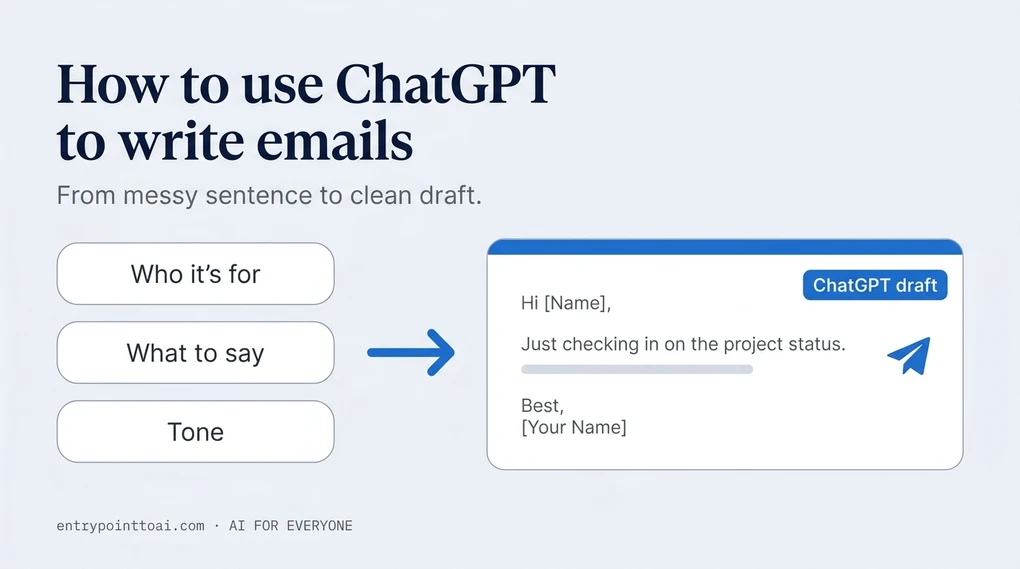
- Tell ChatGPT who the email is for, what you need to say, and the tone. That’s the whole prompt.
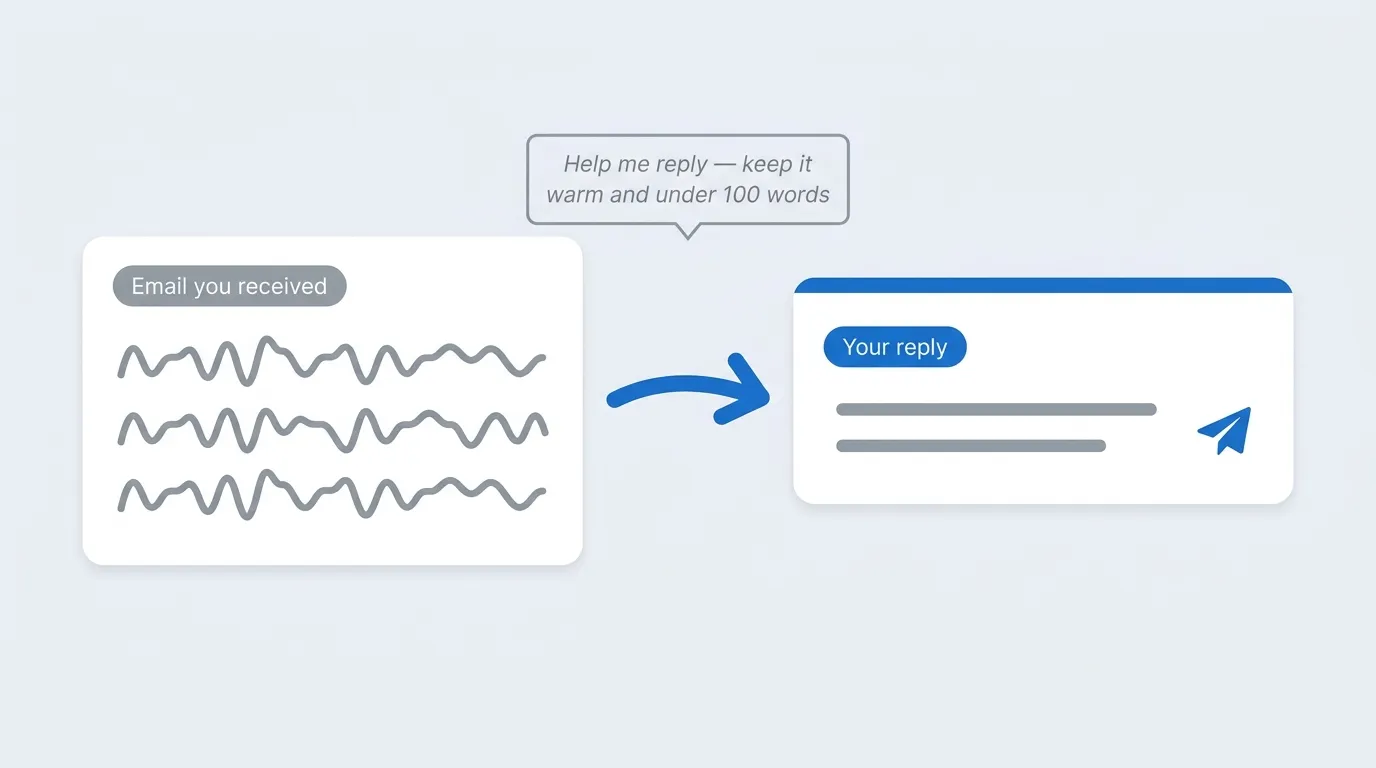
- To answer an email, paste the one you received and say how you want to reply.
- Always read the draft before sending, and never paste private details like account numbers.
This guide is just about email. For letters, messages, and writing in general, we have a broader guide on using ChatGPT for writing.
How do you get ChatGPT to write an email?
Give it three things — the recipient, the point, and the tone — in one plain sentence. You don’t need special wording. You’re briefing an assistant, not programming a computer.
Copy any of these and swap in your details:
- “Write a short, polite email to my landlord asking them to fix the kitchen sink. It’s been leaking for a week and I’ve already mentioned it once.”
- “Write a friendly email to my son’s teacher asking how he’s doing in math and whether we should be practicing at home.”
- “Write a professional email to my manager requesting Friday off for a family matter. Keep it brief — I don’t want to over-explain.”
- “Write a firm but polite email to an airline asking for compensation for a cancelled flight that cost me a hotel night.”
Notice what each prompt includes: who it’s for, the actual point, and a nudge on tone (“polite,” “brief,” “firm but polite”). That last part is what saves you from a stiff, generic draft. If you’d rather be asked for those three pieces than remember them, our email prompt builder collects them and hands you the finished prompt.
If the first result isn’t right, don’t start over — just tell it what to change: “shorter,” “warmer,” “don’t apologize so much.” Each fix builds on the draft it already wrote. Our guide to writing better prompts goes deeper on this back-and-forth.
How do you reply to an email with ChatGPT?
Paste the email you received, then say how you want to answer it. This is the most useful email trick ChatGPT has, and most beginners don’t know it exists.
“Here’s an email I got: [paste it]. Help me reply — I want to say no to the request without damaging the relationship. Keep it warm and under 100 words.”
It works for the whole range of awkward inbox moments:
- Declining an invitation without inventing an excuse.
- Answering a complaint without sounding defensive.
- Following up on something you asked for two weeks ago, politely, again.
- Responding to a long rambling email with a short clear answer.
One habit to build now: strip private details before you paste. Delete account numbers, addresses, and anything you’d hesitate to post publicly. ChatGPT doesn’t need them to draft a good reply — you can add them back in your inbox before sending.
How do you make the email sound like you?
Show it your writing. Paste one or two emails you’ve actually sent and say “match this tone.” ChatGPT picks up your greeting, your sentence length, even whether you use exclamation points.
Then do a two-minute edit pass on the draft:
- Cut anything you’d never say. If you don’t open emails with “I hope this finds you well,” delete it.
- Swap in your own phrases. One or two is enough to make it yours.
- Shorten it. Drafts usually run longer than they need to. Trim the padding and the email gets better and more human at the same time.
The difference between an email that sounds like ChatGPT and one that sounds like you is almost always this edit pass, not a better prompt.
Can ChatGPT write subject lines?
Yes — ask after the draft is done: “Give me five short subject lines for this email.” Pick the one that says plainly what the email is about. Short and clear beats clever: under about 50 characters, so it doesn’t get cut off on a phone screen.
When shouldn’t you use ChatGPT for email?
Skip it when the email is the relationship. Condolences, serious apologies, anything where the other person needs to feel it came from you — those deserve your own imperfect words. A polished draft is the wrong tool there.
And two rules for every email, every time:
- Read the whole draft before sending. ChatGPT writes confidently and still gets details wrong — a name, a date, a fact you never told it. You’re the last check.
- Keep private information out of the chat. Passwords, financial details, other people’s personal information. Draft around them, add them back in your inbox.
That’s genuinely all there is to it. Pick one email you’ve been putting off, give ChatGPT the one-sentence version, and see what comes back. If you’ve never used ChatGPT before, start with our beginner’s guide to ChatGPT — you can be drafting emails five minutes from now.
More in the Using ChatGPT series — plain-English guides for everyday use.
Frequently asked questions
How do I get ChatGPT to write an email for me?
Tell it three things: who the email is for, what you need to say, and the tone you want. For example: "Write a short, polite email to my landlord asking to fix the kitchen sink — it's been leaking for a week." You'll get a draft in seconds that you edit and send.
Can ChatGPT reply to an email I received?
Yes — paste the email you got into the chat and say how you want to respond, for example "Help me reply: I can't make the meeting, suggest next week instead, keep it friendly." Remove any private details like account numbers before you paste.
Is it OK to use ChatGPT for work emails?
For routine work emails — scheduling, updates, polite requests — yes, as long as you read and edit the draft before sending. Don't paste confidential company information into the chat, and skip it for sensitive personal conversations that deserve your own words.
How do I make ChatGPT emails sound less robotic?
Paste one or two emails you've actually written and say "match this tone." Then edit the draft: cut greetings you'd never use, swap in your own phrases, and shorten it. A draft plus two minutes of your edits sounds like you; a raw draft sounds like ChatGPT.
Does ChatGPT write email subject lines too?
Yes. After it drafts the email, ask "Give me five short subject lines for this." Pick the clearest one — under about 50 characters is a good rule so it doesn't get cut off in the inbox.