How to create images with AI for free
You don’t need to download anything, and you almost certainly don’t need a new account. If you’ve used ChatGPT, Gemini, Copilot, or Canva, you already have a free AI image generator sitting in a tab you’ve had open this week.
The essentials:
- Four tools most people already use will generate images on their free plan — no new signup.
- The picture you get depends far more on how you describe it than on which tool you pick.
- “Free” nearly always means capped, watermarked, shrunk, slowed down, or off-limits for business use.
Which free AI image tools do you already have?
Probably at least one of these four: ChatGPT, Google Gemini, Microsoft Copilot, and Canva. Each takes a written description and gives you a picture back, and each does it on a free account.
ChatGPT makes images from a description on the free plan. It’s slower than the paid version and capped, but for a birthday card or a blog illustration, that cap is rarely the thing that stops you. If you’re new to it entirely, start with what ChatGPT is and how to use it.
Google Gemini generates images at gemini.google.com with a normal Google account — there’s an Images section in the menu, plus templates if you’d rather start from something than from a blank box. Paid subscribers get a more advanced model for regenerating images, which tells you where the free ceiling sits.
Microsoft Copilot is free on the web, as a phone app, and built into Windows, and it handles image creation alongside its regular chat.
Canva is the odd one out, and useful for it. It’s a design site, so the image lands inside something you’re actually making — a poster, an invitation, a social post — rather than as a loose file you then have to place. The free plan includes a monthly allowance of AI uses.
For a beginner, these four are close enough in quality that picking between them matters far less than the next section does. We compare the wider free landscape in the best free AI tools for beginners.
How do you actually write an image prompt?
Describe the picture, not the task.
That sounds obvious, and it’s the single thing most beginners get wrong. “Make me a logo for a bakery” describes a job. The AI has to guess every visual decision in it — and when it guesses, it reaches for the most average version of a bakery logo it has ever seen. That’s why first attempts so often come back looking like generic stock art. You asked for a category, so you got the average of that category.
So try this instead. You’re not giving a machine an order. You’re describing a scene to a sketch artist who can’t ask you a single follow-up question. They’ll draw exactly what you said. Everything you didn’t say, they’ll invent.
Which means: say more. Four things, roughly in this order:
- The subject. One clear thing. “A tabby cat,” not “some pets.”
- What it’s doing. An action stops people and animals from standing frozen, facing the camera like a stock photo.
- Where it is. The setting fills in the background, so you’re not left with grey nothing.
- How the shot looks. This is the one beginners skip and it’s the one that changes the most: the style (photo, watercolor, line drawing, 3D render), the lighting, and the angle.
Compare these two:
A cat in a kitchen.
A tabby cat stretching on a sunlit kitchen counter, early morning light through the window, warm colors, photographed from low down at the cat’s eye level.
The first leaves the artist to decide the breed, the pose, the time of day, the light, the mood, the camera position, and whether it’s a photo or a painting. The second leaves them almost nothing to guess.
Here’s what each one actually produced:
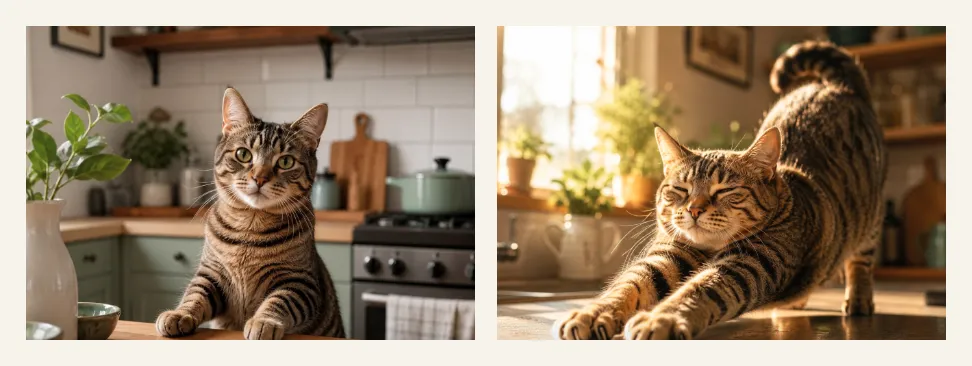
The thing worth noticing is that the first one isn’t bad. It’s a perfectly decent picture of a cat in a kitchen. It’s just posed — the cat sits square to the camera, centered, evenly lit, exactly the way stock photos look. That’s the tool settling every question you left open in the most predictable way it knows.
The second isn’t better drawn. It’s the one where we made the choices.
One more habit worth building: change one thing at a time. When an image comes back close but not right, rewrite a single element — the lighting, or the angle, or the style — and generate again. Change four things at once and you won’t know which one fixed it. If prompt-writing turns out to be the part you enjoy, the same instincts apply to text, and we cover those in how to write better prompts for ChatGPT.
Why did it give me something weird?
Because these tools match patterns, they don’t understand objects. That one fact explains almost every strange result you’ll get.
An image generator has learned what millions of pictures of “kitchen” or “sunlight” or “tabby cat” tend to look like, and it produces something that fits those patterns. It has no idea that a hand has exactly five fingers or that a chair needs its legs to reach the floor. It only knows what those things usually look like in a photo — and that’s a much weaker thing to know. (We unpack the same machinery in how does AI actually work.)
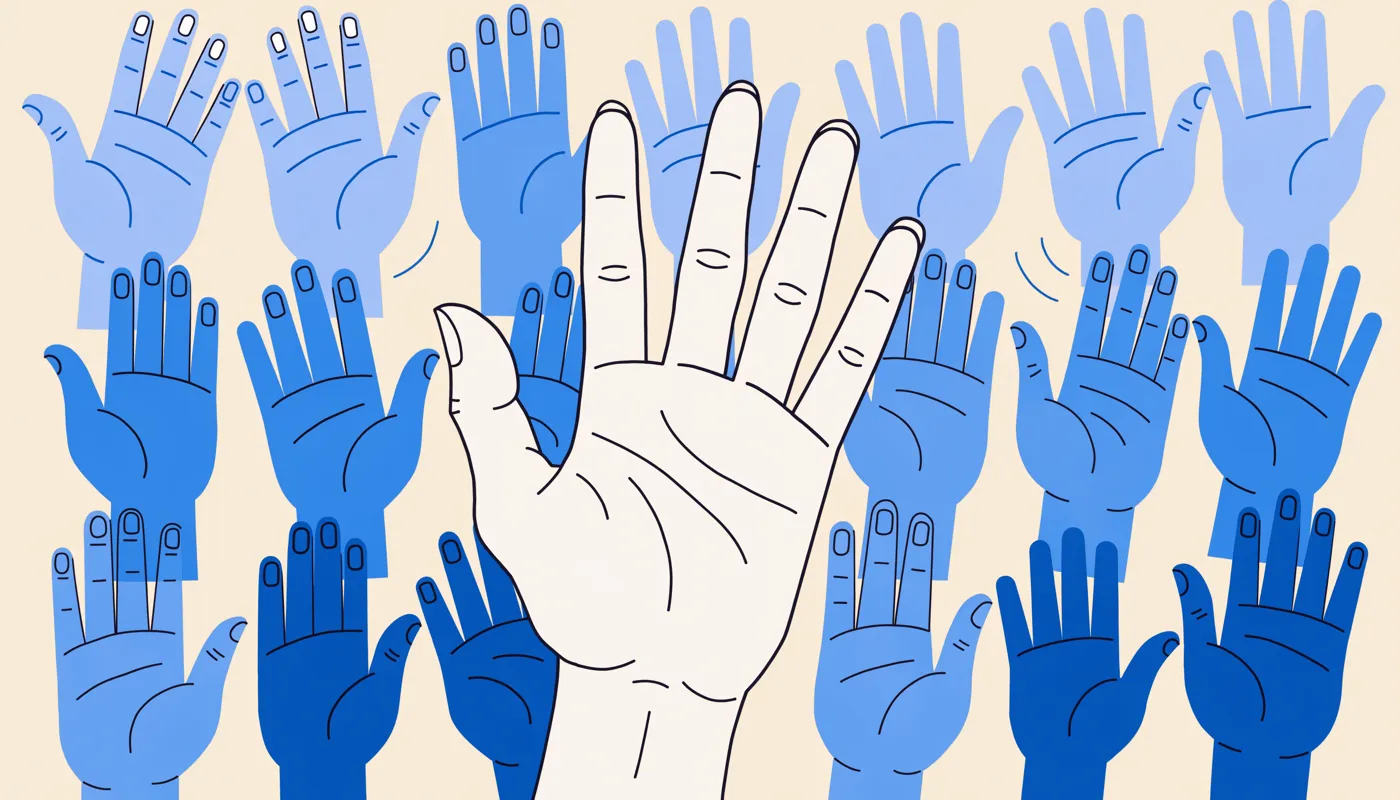
Hands are the famous failure because they look completely different from every angle, so there’s no steady pattern to copy. Text is the other one: letters have to be exactly right to read as a word, while a hand only has to be roughly right to read as a hand. Newer tools have improved at both, especially text. Neither is dependable.
Two things that reliably help: keep the number of people in the frame small, and don’t ask for words inside the picture if you can add them afterward yourself.
And a note that matters more than the glitches. This is generating a new picture, which is a different job from the AI editing built into your phone’s photo app. Erasing a stranger from a beach shot works because there’s no wrong answer to be caught out on; we get into why in do AI photo tools really fix your photos?.
What does “free” actually leave out?
Every free tier limits you somehow. The specific numbers change often enough that any article quoting them is out of date within months, this one included, so it’s more useful to know the shapes the catch comes in. There are five, and most tools use more than one at once.
| The catch | What you’ll notice | When it matters |
|---|---|---|
| A cap | A set number of images per day, week, or month, then you wait | When you’re iterating — and good results come from iterating |
| A watermark | The tool’s name stamped on the image | Anywhere you’d rather not advertise which tool you used |
| A smaller file | Your download comes out at a lower resolution than a paying user’s | When you want to print it, or use it large |
| A slower queue | Paying users go first; you wait longer at busy times | Rarely. Mostly it’s just mildly annoying |
| No business use | Nothing visible — it’s buried in the terms | The moment the image touches anything you sell |
The first four you’ll find out about by bumping into them. The last one you won’t, which is exactly why it’s the one to check. Look at the tool’s own pricing or terms page before you build anything around a free plan.
Can I use the images for anything I want?
Not automatically, and this is worth understanding before you put an AI image on something that matters.
Two separate questions hide inside that one. First: does the tool let you? That’s set by whatever terms you agreed to when you signed up, and free plans are the ones most likely to restrict commercial use. It varies by tool and it changes, so read the current terms of the one you used.
Second, and less obvious: can you own the result? In the US, copyright protects human authorship. The Copyright Office’s 2025 report on copyrightability says copyright doesn’t extend to purely AI-generated material, though it does cover a person’s own creative contributions and edits. So a straight text-to-image result isn’t yours in the way a photo you took is yours.
There’s one notable difference in how tools are built, and it’s a real one: Adobe says its Firefly models were trained on licensed content such as Adobe Stock plus public domain material, and markets Firefly as commercially safe on that basis. Most other generators were trained at least partly on images scraped from the open web. That’s a genuine distinction in where the training pictures came from, not marketing noise.
We’re not lawyers and this isn’t legal advice — for anything commercial, read the terms of the tool you’re using, and get proper advice if real money depends on the answer.
Where to start
Open whichever of the four you already have. Describe a specific picture rather than a task, include the style and the lighting, and when the result is close, change one thing and go again. That’s most of the skill.
More everyday uses of AI: AI Everyday. If you’d rather fix the photos you already have than make new ones, start with do AI photo tools really fix your photos?.
Frequently asked questions
Do I need to sign up for a new tool to make AI images?
Usually not. If you already use ChatGPT, Google Gemini, Microsoft Copilot, or Canva, image generation is built into the free version of each one. Starting with an account you already have saves you a signup and a password, and among these four, the quality of your description matters far more than which one you pick.
What makes a good AI image prompt?
Describe the picture, not the task. Name the subject, what it's doing, where it is, and how the shot looks — lighting, angle, and style. The tool can't ask you follow-up questions, so anything you leave out, it fills in with the most average version it knows.
Why does AI keep getting hands and text wrong?
Image tools work by matching patterns rather than understanding objects. Hands change shape from every angle, so there's no consistent pattern to copy, and letters have to be exactly right to read as words rather than roughly right to look like a hand. Text rendering has improved a lot, but neither is reliable yet.
Are free AI image generators really free?
They're free to use, but they all limit you somehow: a cap on how many images you get, a watermark, a lower-resolution download, a slower queue than paying users, or a rule against business use — often more than one at once. The specific limits change often, so check the tool's own pricing page before you build anything around it.
Can I use AI-generated images for my business?
It depends entirely on the tool's terms, and free plans are the ones most likely to say no. There's also a separate wrinkle in the US: the Copyright Office has said material generated purely by AI isn't protected by copyright, so a pure text-to-image result isn't something you can own the way you'd own a photo you took. For anything commercial, read the terms of the tool you used.